Why you may need a 300KB PDF
File size restrictions aren’t arbitrary. Organizations set limits to manage bandwidth, storage, and processing power. Here’s where 300KB limits commonly appear:
- Government portals and visa applications — Many official submission systems cap uploads at 300KB to 500KB
- Job application platforms — Applicant tracking systems often restrict resume and cover letter sizes
- Email and messaging apps — Some email servers and mobile messengers have strict attachment limits
- University portals — Student information systems frequently impose document size restrictions
- Mobile optimization — Smaller files load faster on cellular networks and consume less data
Meeting these requirements isn’t just about technical compliance. Smaller PDFs upload faster, reduce server load, and provide a better experience for whoever needs to review your document.
How to compress a PDF to 300KB with AvePDF
The AvePDF Compress PDF tool uses intelligent optimization algorithms to reduce file size while maintaining readability. Here’s how to use it.
Step-by-step instructions
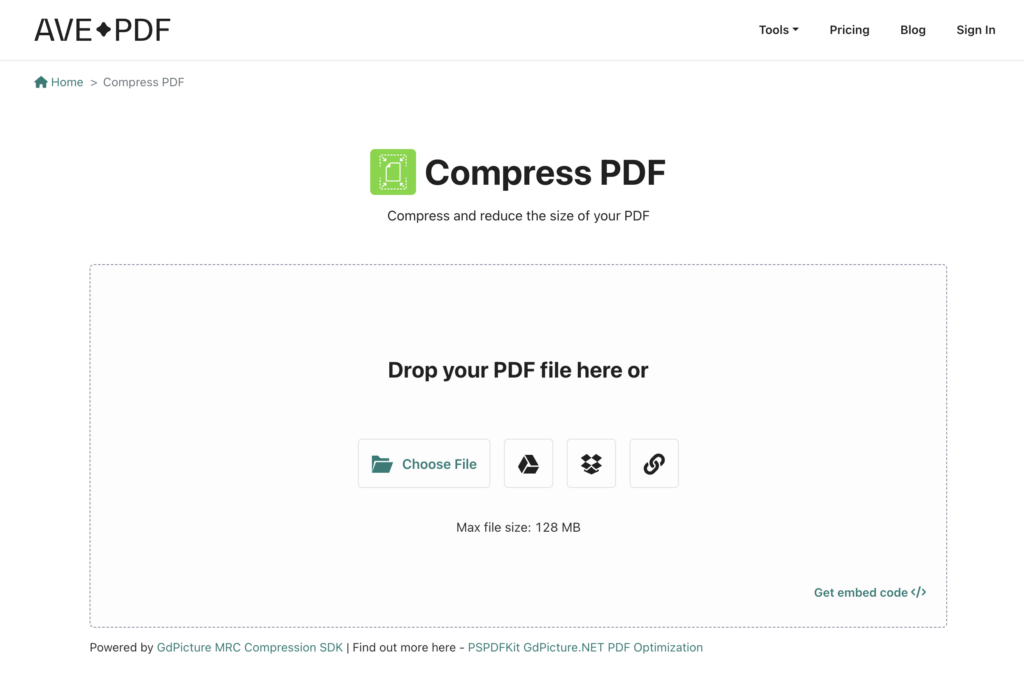
- Upload your PDF
Visit the PDF compression tool and either drag your file into the upload area or click to browse your device. AvePDF accepts files up to 128 MB on the free plan and 512 MB on Premium.
- Choose your compression level
AvePDF offers four compression levels:
- Low — Minimal compression, preserves maximum quality
- Medium — Balanced approach for most documents
- High — More aggressive reduction with slight quality trade-off
- Very High — Maximum compression, best for text-heavy documents
Start with Medium compression. If your file is still above 300KB, increase to High or Very High.

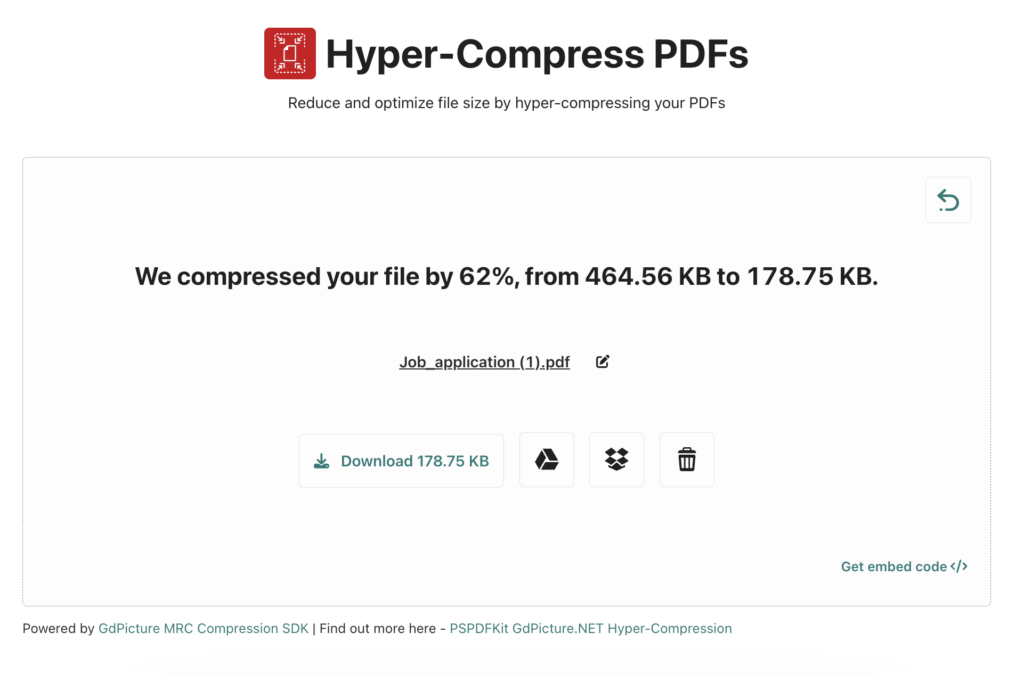
For scanned documents or files with images, consider using hyper-compression instead. It uses Mixed Raster Content (MRC) technology to maintain text readability even at very high compression levels, making it ideal for documents that need maximum size reduction without sacrificing legibility.
- Process your file
Click the compress button and let AvePDF optimize your PDF. Processing typically takes a few seconds, depending on file complexity and current server load.
- Download your compressed PDF
Once processing completes, download your file and check the size. If it’s still above 300KB, you can immediately reprocess with a stronger compression level.
- Retry if necessary
Can’t reach 300KB? Try hyper-compressing your PDF or follow the troubleshooting steps below to identify what’s inflating your file size.
Free plan limitation: The free tier allows two processing operations every six hours. For unlimited compression, consider upgrading to Premium at $45 per year.
Does AvePDF compress PDFs to an exact 300KB?
No compression tool can guarantee an exact output size. Here’s why.
PDF compression works by optimizing images, removing redundant data, and streamlining document structure. The final size depends on your document’s contents — the algorithms compress what they find, but they can’t predict the exact result beforehand.
What AvePDF does instead:
- Analyzes your document’s components (images, fonts, metadata)
- Applies appropriate compression to each element
- Optimizes the overall file structure
- Gets as close to your target as possible while maintaining readability
If your compressed PDF is slightly above 300KB, the troubleshooting section below offers additional techniques to reduce size further.
What affects your file’s ability to reach 300KB
Understanding what makes PDFs large helps you compress them more effectively.
Image resolution
High-resolution images are the primary cause of large PDF files. A single photo at 300 DPI can occupy several megabytes. AvePDF’s compression algorithms downsample images intelligently, but starting with excessively large images makes reaching 300KB difficult.
What you can do: If you’re creating a PDF from scratch, use images at 150 DPI for screen viewing or 200 DPI for print quality. Higher resolutions rarely provide visible benefits for typical business documents.
Embedded fonts
PDFs embed font data to ensure consistent display across devices. Each font adds 50KB to 200KB to your file size. Documents with multiple fonts or decorative typefaces carry more overhead.
What you can do: Stick to standard fonts like Arial, Times New Roman, or Calibri when creating documents intended for compression. These fonts compress more efficiently.
Background layers and graphics
Decorative backgrounds, watermarks, and layered elements add data without contributing to content. A full-page background image can easily exceed your entire 300KB budget.
What you can do: Remove decorative elements before compression. Focus on content clarity rather than visual embellishment for documents with strict size limits.
Scanned vs. digital PDFs
Scanned documents are essentially images of pages, making them inherently larger than digitally created PDFs that contain actual text. A 10-page scanned document at 200 DPI might start at 5 MB, while the same content as a digital PDF could be 200KB.
What you can do: When possible, create PDFs directly from source documents (Word, Google Docs, etc.) rather than printing and scanning. If you must scan, use grayscale at 150 DPI for documents without critical image content.
Troubleshooting — if your PDF won’t reach 300KB
Compressed your file but still above the limit? These techniques provide additional size reduction.
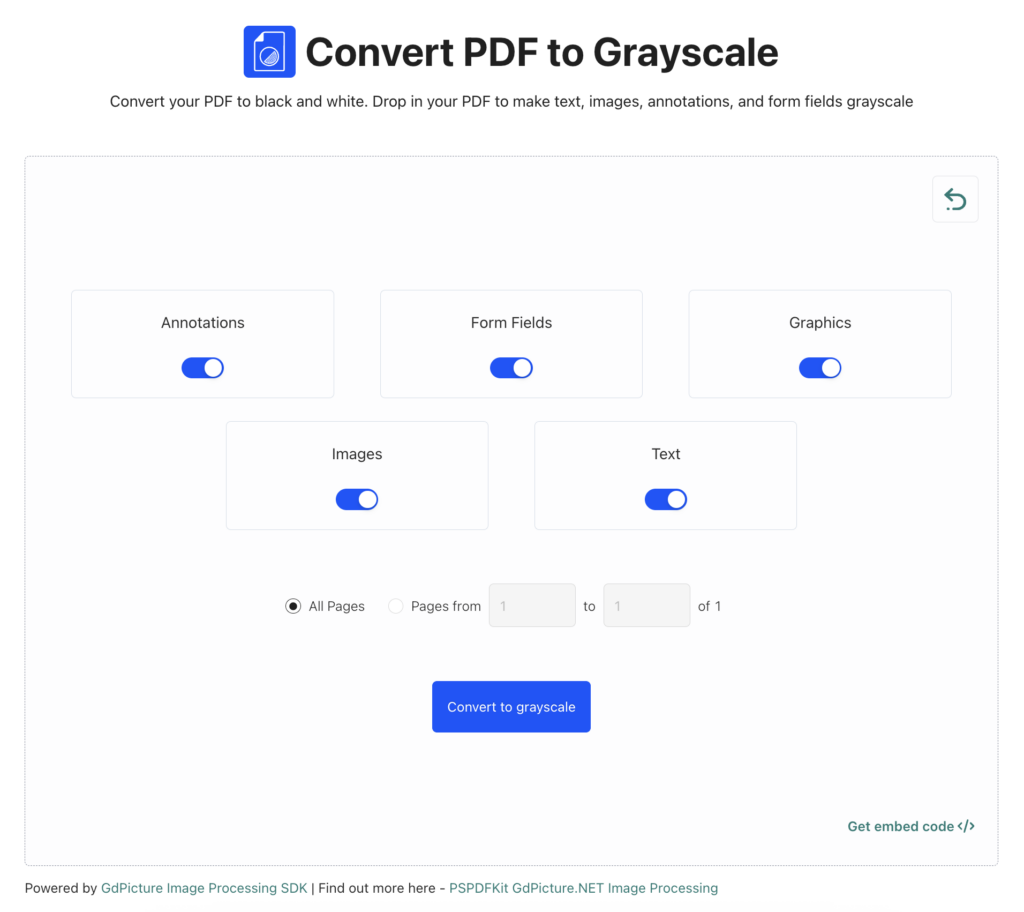
Convert to grayscale
Color information adds data. For text documents, diagrams, and forms, color rarely serves a functional purpose. Converting to grayscale can reduce file size by 20 to 40 percent.
Convert your PDF to grayscale before compressing. This strips color data while maintaining readability.
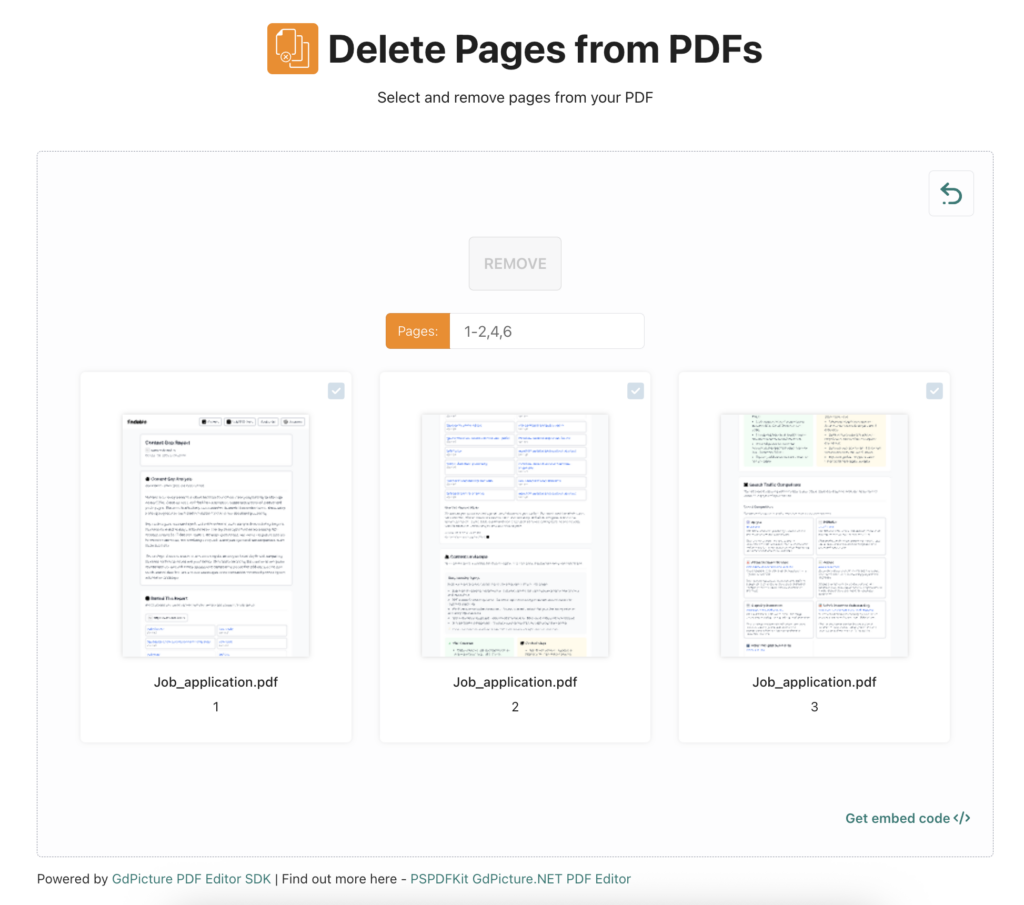
Remove unnecessary pages
Every page adds to file size. Review your document and eliminate any pages that aren’t essential for your submission. Cover pages, blank pages, and redundant information all contribute to bloat.
Remove unnecessary PDF pages first, then compress the remaining content.
Flatten form fields
Interactive PDF forms with fillable fields carry extra data for functionality. If you’ve already filled out a form and don’t need the interactive features anymore, flattening converts those fields to static content.
Flatten your PDF form fields to convert interactive fields into static content. This typically reduces file size by 15 to 30 percent by eliminating the interactive layer while preserving all your filled-in data.
Re-save PDF as optimized
Sometimes PDFs accumulate cruft from multiple editing sessions. Each edit can leave behind redundant data that inflates file size without adding content.
Try opening your PDF in a PDF editor and using “Save As” with an optimization option. This rebuilds the file structure from scratch, often revealing significant size savings.
Try hyper compression for maximum reduction
When standard compression isn’t enough, AvePDF’s hyper-compression feature applies more aggressive optimization techniques. This mode prioritizes file size over absolute quality preservation.
Hyper compression works best for:
- Text-heavy documents with minimal images
- Forms and applications where perfect image quality isn’t critical
- Documents where meeting the size requirement outweighs visual fidelity
Review the output carefully, as aggressive compression can sometimes affect readability on low-quality images.
Split large documents
If your document contains multiple distinct sections, consider splitting it into separate files. This is particularly useful for multi-document submissions where each file has an individual size limit.
Split your PDF into smaller files to divide your PDF by page ranges or extract specific pages into new files.
Compress PDF to 300KB on any device
AvePDF runs entirely in your browser, which means it works on any device without installation.
Desktop browsers
Full functionality on Windows, macOS, and Linux through any modern browser. Chrome, Firefox, Safari, and Edge all support AvePDF’s compression features. Simply visit the website, upload your file, and compress.
The browser-based approach means no software installation, no updates to manage, and no compatibility issues with your operating system.
Mobile browsers
Need to compress a PDF on your phone or tablet? AvePDF works on mobile Safari (iOS) and Chrome (Android) just as it does on desktop. Upload files from your device storage, cloud services like Google Drive and Dropbox, or directly from a web address (URL).
Mobile compression is particularly useful when you’re away from your computer but need to submit a document quickly. The interface adapts to smaller screens while maintaining full functionality.
No installation required
AvePDF processes files on secure servers, not on your device. This means:
- No disk space consumed by software
- No performance impact on older or lower-powered devices
- Always running the latest compression algorithms without manual updates
- Consistent experience across all your devices
Files are encrypted during transmission and automatically deleted from servers after processing. Your documents remain private and secure.
Frequently asked questions
Upload your PDF to compress it online, select a compression level, and process the file. If the result is still above 300KB, try a stronger compression level or use the troubleshooting techniques in this guide to reduce size further.
No compression tool can target an exact output size because the final file size depends on your document’s content. Compression algorithms optimize what they find, but they can’t predict the exact result. AvePDF gets as close as possible while maintaining document quality and readability.
Large file sizes after compression typically indicate high-resolution images, embedded fonts, decorative backgrounds, or scanned content. Convert to grayscale, remove unnecessary pages, use hyper compression, or flatten form fields to reduce size further. See the troubleshooting section for detailed steps.
Yes, but compression balances size reduction with readability. Standard compression maintains good quality for most documents. Stronger compression modes reduce quality more noticeably but keep text readable. Images may show some quality loss, particularly with aggressive compression. Always review your compressed file before submission.
Yes. AvePDF free plan allows up to 10 files per processing operation, with a limit of two operations every six hours. AvePDF Premium ($45 per year) offers unlimited processing with up to 100 files per operation, making it ideal for bulk compression needs.
Ready to compress your PDF? Try compressing your PDF for free and get your file under 300KB in seconds. For unlimited compression without hourly limits, explore AvePDF Premium plans with a 30-day money-back guarantee.